

Written by Josh Hutter
Originally published November 2022 • Updated March 2026
In affiliate marketing, not all deals are appropriate for every audience. That’s where restricted deals in FMTC come in. These allow publishers to filter sensitive or regulated content—such as alcohol or gambling—from their deal feeds.
In this guide, we’ll explain what restricted deals are, how they work, and how to enable or customize them so you can better control the affiliate content you display.
What Are Restricted Deals in FMTC?
A restricted deal is a deal with a flag value indicating if the category is a restricted-content category (see below for restricted categories). FMTC will flag certain content to give subscribers better control over the content they see.
This helps ensure your content aligns with:
- Brand safety guidelines
- Platform compliance (Google, Meta, etc.)
- Audience preferences
Why Restricted Deal Categories Matter
Filtering restricted affiliate deals isn’t just about preference—it’s about control and compliance.
Using restricted deal settings helps you:
- Avoid displaying inappropriate or sensitive content
- Stay compliant with advertising platform policies
- Maintain brand trust with your audience
- Customize your deal feed for specific verticals or audiences
FMTC’s Default Restricted Categories
FMTC provides a set of default restricted categories. These may include:
- Alcohol
- Gambling
- Tobacco
- Other regulated or sensitive industries
For a full list and description of each category, head to our Category documentation.
How to Enable Restricted Deals in FMTC
By default, restricted deals may be excluded from your feed. To include them, navigate to Deal Feed Settings and select “Enable Restricted Deals.” Once enabled, these deals will begin appearing in your feed based on your configuration.

How to Customize Restricted Categories
FMTC allows flexibility in how restricted content is handled.
- Include all restricted categories
- Exclude all restricted categories
- Select specific categores to include or exclude
Steps to Customize Restricted Categories
- Navigate to Manage Credentials & Settings > Manage Deal Feed Settings
- Enable Restricted Deals. This enables the resticted deals in your feed and allows you to customize. If you do not want these deals in your feed, do not check ‘Enable Restricted Deals’
- Navigate to Manage Feed Categories.
- Add or Remove all restricted categories
- To customize specific categories you want to see in your feed. Add or remove them here
Note: These steps will override the FMTC default restricted categories, using the categories that you set up instead. You can still easily use FMTC’s default restricted categories by selecting the button “Add All Restricted Categories.” Once these categories have been configured, API calls made after will immediately reflect these changes and apply to the content you receive.
Examples of How to Use Restricted Categories
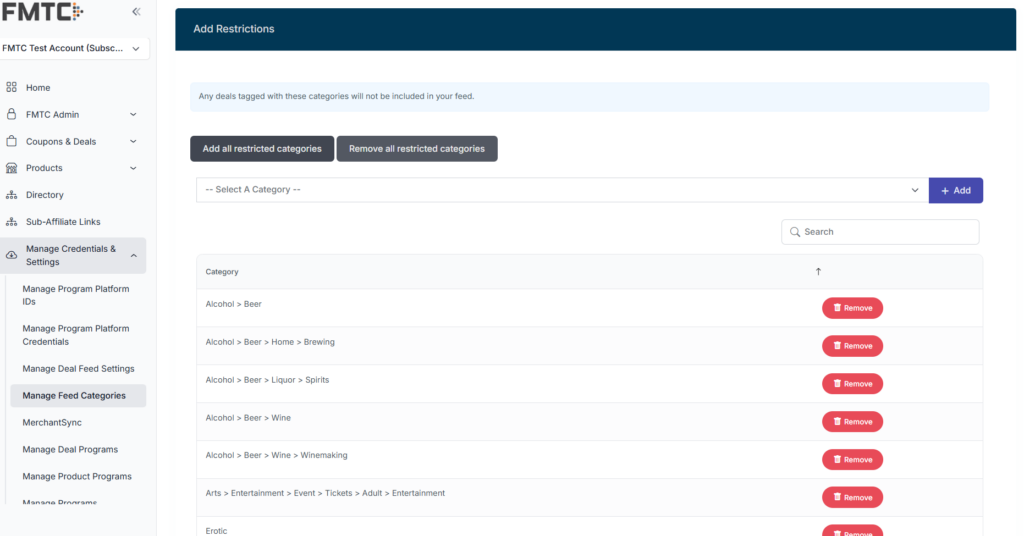
Remove all Resticted Categories from you API
The example below shows clicking on “Add all resticted categores”. Any deals tagged with these categories would be removed from the API.
Remove a Specific (non-restricted) Category from your API
In this example, FMTC has four categories for Animals & Pet Supplies: bird, cat, dog, and horse. The setup below ensures you will only receive deals under Cat Supplies and Dog Supplies. The Bird and Horse Supplies categories have been restricted.
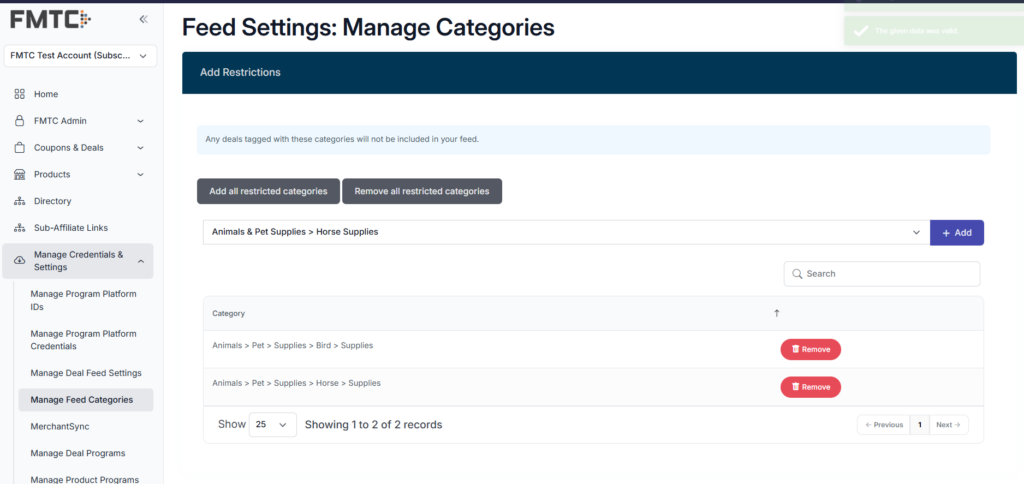
To remove a category from the restricted list, click the “Remove” button. The content for that category will then show up in your feed on your next pull.
As always, our team is ready to help you! If you have any questions or concerns, feel free to contact your account manager or email us at support@fmtc.co. Curious about other FMTC technologies? Find more information on FMTC’s tools in Tech Corner:
FMTC Tech Corner: getDeals Deep Dive
FMTC Tech Corner: getMerchants Deep Dive
FMTC Tech Corner: Get Deals and Get Merchants
FMTC Tech Corner: Deal Types and the getTypes API
FMTC Tech Corner: getNetworks
FMTC Tech Corner: getLogos
FMTC Tech Corner: The Product Feed
The post FMTC Restricted Deals: How to Filter Affiliate Content & Control Your Deal Feed appeared first on FMTC.








Last Comments